 using WordPress and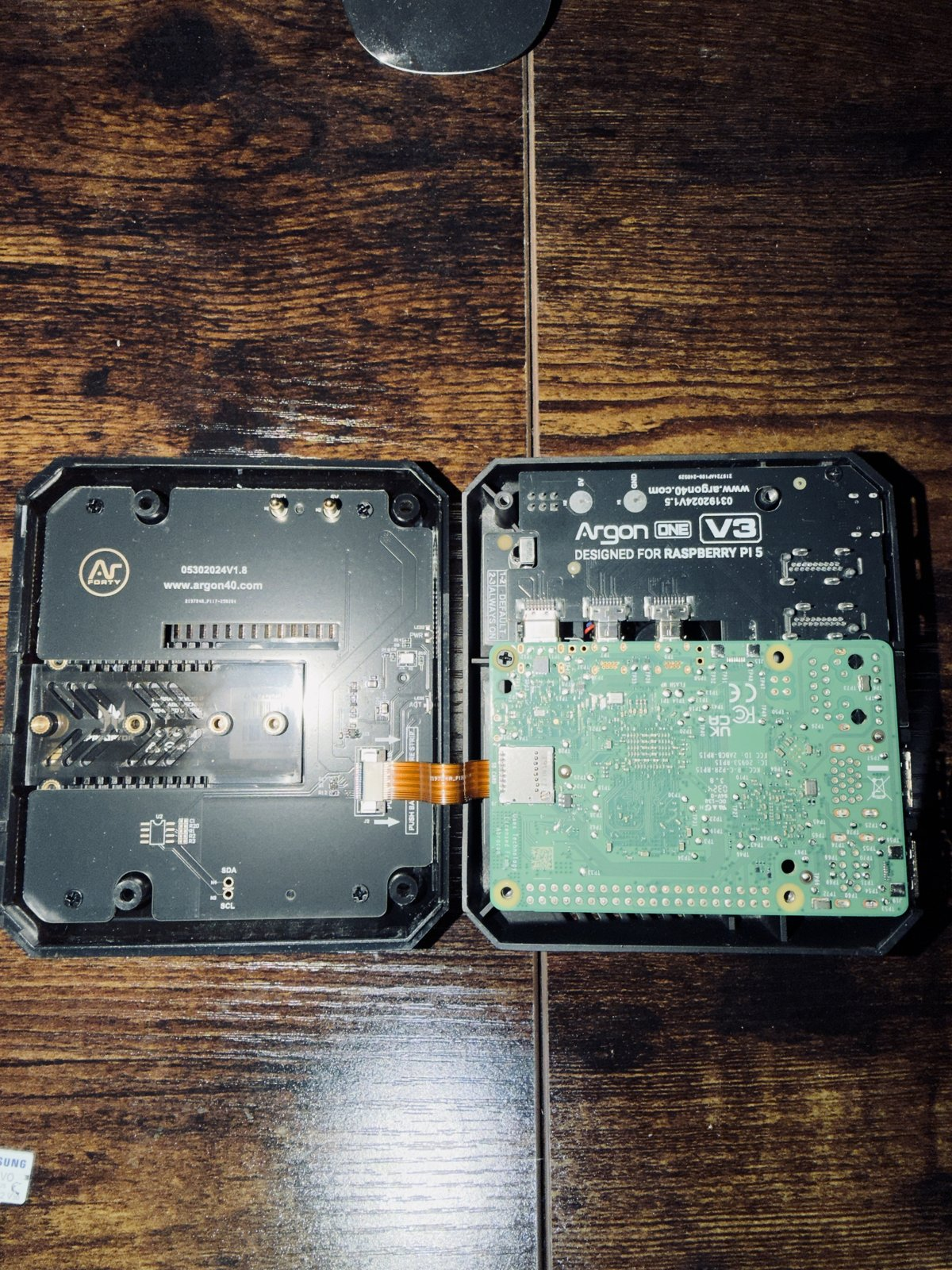
Every few months another streaming service sends the same email. Prices are going up, there’s a new tier with ads, and the show your kids were halfway through is leaving at the end of the month. Multiply that by four or five services and you’re paying a cable bill again, just with more passwords.
So I built my own. Not a pirate operation, not a sketchy box from a flea market. A private, family-only streaming service that runs on three Raspberry Pi 5 boards sitting on a shelf in my house. It has a slick app on every TV, phone, and tablet we own, a request portal the family can use, encrypted long-term storage in the cloud, and a VPN so I can manage the whole thing from anywhere.
The streaming business is worth several hundred billion dollars a year, depending on whose market report you believe. I’m not going to topple it from my workbench. But I can opt my own household out of a good chunk of it, and you can too. The parts are all commodity gear you can order from Amazon or Newegg, about $1,100 for my exact build at today’s prices (there’s a cheaper version too), and the build is a solid afternoon of tinkering, call it three or four hours if you’ve touched a Linux command line before.
This is a long one, because I’m going to show my work. There’s real math in here on why the storage is laid out the way it is, and I’d rather you understand the design than copy and paste it. Grab a coffee.
Disclaimer: please read this first
This post explains how to set up, configure, and run the software and hardware in my home media stack. It is for educational purposes only.
Neither this post nor I will discuss “media acquisition” beyond using media you personally and legally own. I do not condone piracy, and nothing here should be read as guidance on obtaining content you don’t have the rights to. What you load into your own library, and making sure you have the right to it, is your responsibility.
The 30,000-foot view: three Pis, three jobs
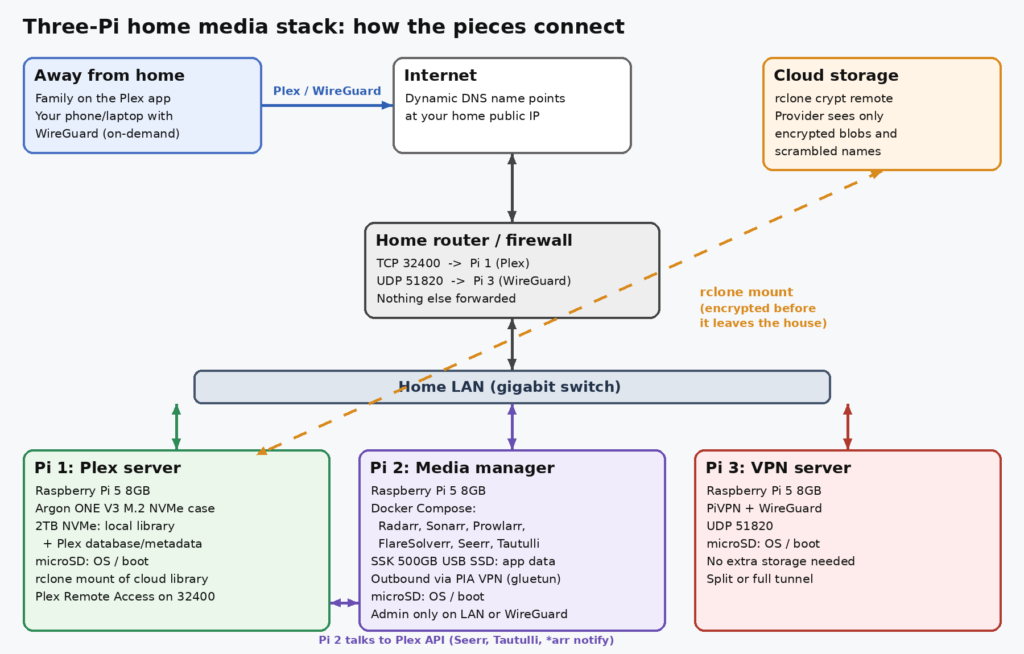
My stack runs on three separate Raspberry Pi 5 boards, and each one has exactly one job.
- Pi 1, the Plex server. Runs Plex Media Server, holds the local media library on a 2TB NVMe SSD, and mounts an encrypted cloud library with rclone.
- Pi 2, the media manager. Runs Radarr, Sonarr, Prowlarr with FlareSolverr, Seerr, and Tautulli in Docker, with its app data on an external USB SSD. Its outbound internet traffic goes through a Private Internet Access (PIA) VPN tunnel.
- Pi 3, the VPN server. Runs WireGuard through PiVPN so I can reach the management side of the stack when I’m away from home. That’s it. That’s the whole job.
Could you cram all of this onto one bigger box? Sure. Plenty of people run everything on a single mini PC, and I’m not going to tell them they’re wrong. But I went with three boards on purpose, and since it’s the first question people ask when they see the shelf, here’s my thinking.
First, it’s about spreading the load. All three of my Pis are the 8GB model, and even so, a Pi 5 is a modest computer. Four Cortex-A76 cores, 8GB of RAM, one PCIe lane, one gigabit NIC. Those are scarce resources, and part of the whole point of this build is keeping it as budget-friendly as I can. I could buy one expensive box with enough headroom to run everything, or I can spread the work across three inexpensive ones so no single board becomes the bottleneck. Plex serving a couple of streams while Sonarr renames a big batch of files and Prowlarr syncs is a classic noisy-neighbor problem when they all share one CPU, one pool of RAM, and one disk. Split up, Plex gets the whole CPU, the whole PCIe lane, and the whole NIC to itself, and the media manager can grind through its housekeeping without anybody’s movie stuttering.
Second, and I’ll be honest here, it just makes more logical sense in my head. One box, one job. When something acts up, I know exactly where to look. Plex is buffering? That’s Pi 1. A request didn’t show up? That’s Pi 2. Can’t get in from the road? That’s Pi 3. It’s the same instinct that makes us keep the core router, the voice gateway, and the firewall in separate chassis at work when we can. Each box ends up with a short, boring config, and boring is a feature in infrastructure.
Third, and this is the big one: I like the Pi a lot, but I don’t kid myself about what it is. The Raspberry Pi 5 is a huge leap over the boards that came before it, and it’s genuinely capable. It’s also consumer-grade IoT hardware. It probably wasn’t built to run 24x7x365 under sustained I/O the way a traditional server is, with ECC memory, redundant power supplies, and enterprise storage. I fully expect these boards to break or wear out faster than a real server would. Not if. When.
So I plan for it. Siloing the workloads means that when one Pi inevitably bites the dust, it doesn’t take the whole stack down with it. If the media manager dies, Plex keeps streaming and nobody in the house notices until I tell them. If the VPN box dies, the family still watches movies, and I just can’t reach the admin side from the road until I fix it. Backups and restores get simpler too, because each box only has its own small pile of config to protect. The fix is reflash one SD card, restore one box’s backup, and I’m back in business without untangling a mess of dependencies. And since every node is the same 8GB board, one spare Pi 5 in a drawer can step into any of the three roles. I’ll come back to this in the maintenance section, because my backup plan is built around exactly that.
Hardware and bill of materials
Everything here is off-the-shelf. No soldering, no 3D printing, no eBay roulette. Prices below are approximate, at time of writing (Oct 2026), pulled from Amazon, Newegg, Argon40, and official Raspberry Pi resellers. They move around, so treat them as a ballpark and shop around.
| Item | Purpose | Approx. price (Oct 2026) |
|---|---|---|
| Pi 1: Plex server | ||
| Raspberry Pi 5, 8GB | Plex server | $175 (official list; about $200 on Amazon) |
| Argon ONE V3 M.2 NVMe PCIe case | Aluminum case with fan and an integrated M.2 NVMe PCIe board | $49 to $50 |
| Acer Predator GM7000 2TB NVMe SSD | Local media library and Plex database | About $330 (Newegg; about $370 on Amazon) |
| SanDisk 128GB microSD (Extreme, A2) | OS and boot | About $43 |
| Official Raspberry Pi 27W USB-C power supply | Power | About $14 |
| Pi 2: Media manager | ||
| Raspberry Pi 5, 8GB | Docker host for the *arr apps, Seerr, and Tautulli | $175 |
| SSK 500GB portable SSD (USB) | App data and databases | About $76 |
| Official Raspberry Pi 5 case (built-in fan) | Case and cooling | About $10 |
| 32GB A1 microSD (SanDisk Ultra) | OS and boot | About $21 |
| Official 27W USB-C power supply | Power | About $14 |
| Pi 3: VPN server | ||
| Raspberry Pi 5, 8GB | WireGuard via PiVPN | $175 |
| Official Raspberry Pi 5 case (built-in fan) | Case and cooling | About $10 |
| 32GB A1 microSD (SanDisk Ultra) | OS and boot | About $21 |
| Official 27W USB-C power supply | Power | About $14 |
| Shared | ||
| Cat6 patch cables (3) | Wired gigabit to the switch | About $10 (estimate) |
| Private Internet Access subscription (optional) | Outbound VPN for the media manager | $11.95/month, or $47.88 for the first year on the annual plan (not included in the total) |
| Total, my exact parts list | About $1,140 |
What it really costs, and how to spend less
The table adds up to about $1,140 for my exact build, three 8GB Pis and all. If that number surprises you, here’s why. When the Raspberry Pi 5 launched, the 8GB board was $80, the 4GB was $60, and the 2GB was $50. Then the AI data center build-out started vacuuming up the world’s memory and flash supply (I wrote about why AI is so hungry for that hardware in How AI Really Works). Raspberry Pi has raised prices several times in 2026 because of LPDDR4 costs, and NVMe drives went up right along with it. The same 2TB GM7000 that sold for around $200 at Newegg in the summer of 2025 is about $330 today.
So at October 2026 prices, the full build as I specced it comes to about $1,140, call it $1,100 and change. Raspberry Pi has said publicly that it plans to unwind the increases once memory pricing settles, so it may get cheaper over the next few months. If you’d rather spend less today, here’s the budget version I’d recommend:
| Change | Why it’s fine | Approx. savings |
|---|---|---|
| Pi 1 as a 4GB board instead of 8GB | Plex on a Pi should be Direct Playing anyway (more on that below), so it isn’t RAM-hungry | $65 |
| Pi 2 as a 4GB board instead of 8GB | This set of containers fits in 4GB if you don’t pile much else on | $65 |
| 1TB NVMe (for example a Crucial P310, about $146) instead of 2TB | Half the local library space; lean harder on the cloud library. Its 220 TBW rating still works out to about 60 years at 10 GB/day | About $184 |
| 32GB microSD on Pi 1 instead of 128GB | The SD card only holds the OS in this design | About $22 |
| Pi 3 as a 1GB board ($45) instead of 8GB | WireGuard barely uses any memory | $130 |
That gets you to roughly $670 today with the exact same three-Pi architecture. You give up some local library space and some RAM headroom on the Plex box, and that’s about it. Either way, it’s a one-time cost, and it’s in the same neighborhood as what a lot of households spend on streaming subscriptions in a year or two.
Pi 1: the Plex server
This is the one that does the heavy lifting, so it gets the nicest hardware. The Argon ONE V3 M.2 NVMe PCIe case is an aluminum case that doubles as a heatsink, with a small PWM fan, full-size HDMI and all the ports moved to the back. The important part for us is the bottom section: it has an M.2 NVMe PCIe board built into the case, connected to the Pi 5’s PCIe connector with a short ribbon (FPC) cable, plus its own aluminum heatsink for the SSD. So there’s no separate NVMe HAT to buy. The case’s integrated board takes any M-key NVMe drive up to 2280 length.
Inside it sits a 2TB Acer Predator GM7000. It’s a PCIe 4.0 x4 drive with a DRAM cache, and it’s wildly overqualified for the Pi’s single PCIe lane, but I didn’t buy it for the speed. I bought it for the endurance rating and the DRAM, which we’ll get into in a minute. The 128GB SanDisk microSD holds Raspberry Pi OS.
Pi 2: the media manager
A Raspberry Pi 5 with an SSK 500GB USB SSD plugged into one of the blue USB 3.0 ports, inside the official case with its built-in fan. The SSD holds all the Docker volumes and the SQLite databases for the apps. Mine is the 8GB model. These containers could get by on less, but FlareSolverr runs a headless browser and the *arr apps like their memory during big library operations, so the extra headroom keeps everything comfortable and leaves room to add services later.
One gotcha worth knowing: the Pi 5 limits total USB current to 600mA unless it detects a proper 5V/5A USB-PD supply, in which case it allows 1.6A. A bus-powered SSD on a weak phone charger is a recipe for random disconnects. Use the official 27W supply and you’re fine.
Pi 3: the VPN server
A Raspberry Pi 5 8GB in a case. No SSD, no extras. WireGuard is a tiny bit of code that lives in the Linux kernel, and encrypting a few remote sessions is nothing for a Cortex-A76. The only data on this box is a handful of small config files and keys. It needs almost no storage, almost no RAM, and almost no CPU. Honestly, 8GB is overkill for this job, but I run the same board everywhere so any spare can step into any role. The thing that controls the front door shouldn’t be competing with anything.
Every Pi gets wired Ethernet. Wi-Fi works, but for servers I want a cable. Same reason you don’t run your core switch uplinks over a point-to-point wireless bridge unless you have to.
Why the Plex and media manager servers run on SSDs, not the SD card
This is the part people skip, and it’s the part that bites them six months later. A microSD card is fine for booting an OS. It is not built to be a server’s data disk, running 24/7/365 under constant small writes. Let me walk through why, with numbers.
What actually writes to disk on a media server
You’d think a media server mostly reads. The movies do mostly get read. But everything around the movies is writing constantly:
- Plex’s SQLite library database. Every play, pause, resume position, watched flag, and library change is a small database write, often followed by a sync to make sure it’s safely on disk.
- Plex metadata. Posters, fan art, thumbnails, and metadata bundles are thousands of small files that get created and refreshed.
- Transcoder temp files. If Plex ever has to transcode, it writes the transcoded segments to a temp directory as it goes.
- Logs. Plex logs, Docker logs, and the system journal, all the time.
- The *arr databases. Radarr, Sonarr, and Prowlarr each run their own SQLite database, with scheduled tasks, history, and housekeeping writes around the clock.
That’s a workload of small, random writes with frequent syncs. It’s exactly what flash storage handles worst, and exactly what SD cards are least designed for.
IOPS: the number that matters for databases
Sequential speed (MB/s) is what’s printed on the package. For databases, the number that matters is random 4K IOPS, how many small reads and writes per second the device can handle. The SD Association’s own Application Performance Classes spell out the minimums:
| Device | Random read (4K IOPS) | Random write (4K IOPS) | Source / note |
|---|---|---|---|
| microSD, A1 class | 1,500 minimum | 500 minimum | SD Association spec |
| microSD, A2 class | 4,000 minimum | 2,000 minimum | SD Association spec |
| Acer Predator GM7000 2TB (rated, in a PC) | 1,300,000 | 1,100,000 | Acer/Predator spec sheet |
| NVMe SSD on a Pi 5 (published tests, PCIe Gen 2) | Tens of thousands, up to about 100,000 at high queue depth | Tens of thousands | Limited by the Pi’s single PCIe lane |
The Pi’s single PCIe lane throttles the NVMe drive way below its rated numbers, and that’s fine. Even throttled, it’s an order of magnitude or more ahead of the best-case SD card minimums on random writes.
Here’s a worked example. Say a big library refresh or maintenance window touches 1,000,000 small 4K writes (metadata bundles, database pages, thumbnails). These are assumptions to show scale, not a benchmark:
| Device (assumed sustained random write) | Time for 1,000,000 x 4K writes |
|---|---|
| A1 microSD at its 500 IOPS floor | 1,000,000 / 500 = 2,000 s, about 33 minutes |
| A2 microSD at its 2,000 IOPS floor | 1,000,000 / 2,000 = 500 s, about 8.3 minutes |
| NVMe on the Pi 5, conservatively 20,000 IOPS | 1,000,000 / 20,000 = 50 s |
During those 33 minutes on the SD card, everything else that wants the disk waits in line, including the database write that records where your kid paused the movie. That’s where the “Plex is sluggish” complaints come from. Real SD cards also tend to have ugly worst-case latency on small synced writes, so the average looks better than what it feels like.
Endurance: TBW, wear leveling, and write amplification
Flash wears out. Every NAND cell can only be erased and rewritten so many times. SSD makers publish an endurance rating in TBW (terabytes written). The GM7000 2TB is rated for 1,300 TBW with a 5-year warranty, per Acer’s own spec sheet. (You’ll see 1,200 in some early reviews; the current official sheet says 1,300.)
Regular microSD cards, including the SanDisk Extreme I use for boot, don’t publish a TBW rating at all. That alone tells you something about what they’re designed for. The closest thing we can compare is SanDisk’s purpose-built High Endurance line, which is rated in hours of continuous video recording. The 128GB High Endurance card is rated for up to 10,000 hours of Full HD video at 26 Mbps. Let’s turn that into TBW:
26 Mbps / 8 bits per byte      = 3.25 MB/s
3.25 MB/s x 3,600 s/hour       = 11,700 MB/hour (11.7 GB/hour)
11.7 GB/hour x 10,000 hours    = 117,000 GB, about 117 TB written
So the special endurance-rated card, under the friendliest possible workload (big sequential video writes), works out to roughly 117 TB. The GM7000 is rated for about 11 times that, and its rating is based on a much more realistic mixed workload. A regular card with no endurance rating is anybody’s guess, and it’s probably lower.
Then there’s write amplification. Flash is written in pages but erased in much bigger blocks. When you change 4KB, the controller may have to read, erase, and rewrite a much larger chunk, so the NAND absorbs more writes than your software actually sent. A good SSD fights this with a DRAM cache (the GM7000 has 2GB of DDR4), smart garbage collection, overprovisioning, and serious wear leveling that spreads writes across every cell. SD cards generally have much simpler controllers, no DRAM cache, and far more limited wear leveling. Small random writes with frequent syncs are their worst case, so their effective endurance on a database workload is a lot lower than that video number.
The daily-writes math
Let’s estimate what my Plex server actually writes in a day. These are labeled assumptions for a busy household, deliberately on the high side:
| Source | Assumed writes per day | Notes |
|---|---|---|
| Plex database churn (SQLite, WAL, play state, stats) | 2 GB | Many small synced writes |
| Metadata, artwork, thumbnails | 1 GB | Refreshes and new items |
| Logs (Plex plus system journal) | 0.5 GB | Rotated, but constant |
| Transcoder temp | 3.6 GB | One hour of 1080p transcode at 8 Mbps: 8/8 x 3,600 = 3,600 MB |
| New media added to the local library | 3 GB | About 20 GB a week of your own content |
| Total | About 10 GB/day |
Annual host writes  = 10 GB/day x 365       = 3,650 GB/year (about 3.65 TB/year)

GM7000 2TB:   1,300 TBW / 3.65 TB per year  = about 356 years of rated endurance
              (the 5-year warranty runs out long before the NAND does)

10x worse case (100 GB/day):
              36.5 TB/year -> 1,300 / 36.5  = about 35 years

High Endurance 128GB microSD, best case (sequential, ~117 TB):
              117 / 3.65                    = about 32 years on paper
Wait, 32 years on paper for the SD card doesn’t sound bad, right? Here’s the catch. That 117 TB is for the special endurance card under sequential video writes. Apply a write amplification factor on a small-random-write database workload (even a modest 5x as an assumption) and that 32 years shrinks to about 6. Use a regular card with no endurance rating and lower-grade NAND, and it can be a lot less. And none of that fixes the IOPS problem, which is what you’ll actually feel every day. Endurance is how it dies. IOPS is how it feels while it’s alive.
On the NVMe drive, even if my assumptions are off by 10x, I’m fine for decades. That’s the margin you want on a box you’d like to forget about.
Bandwidth: PCIe vs USB vs the SD slot
| Interface on the Pi 5 | Raw link | Real-world sequential |
|---|---|---|
| microSD (SDR104 mode) | 104 MB/s bus maximum | Commonly about 60 to 90 MB/s read |
| USB 3.0 port (5 Gbps, 8b/10b encoding) | 500 MB/s | About 350 to 400 MB/s read with a UAS SSD |
| PCIe 2.0 x1 (official default) | 5 GT/s x 8/10 = 500 MB/s | About 430 to 450 MB/s |
| PCIe 3.0 x1 (unofficial, dtparam=pciex1_gen=3) | 8 GT/s x 128/130 = about 985 MB/s | About 800 to 900 MB/s |
That’s why the media manager is perfectly happy on a USB SSD (its job is database and config I/O, and USB 3.0 has plenty of headroom for that), while the Plex server gets the NVMe on PCIe. You can force PCIe Gen 3 by adding dtparam=pciex1_gen=3 to /boot/firmware/config.txt. It’s not officially supported and some drive and cable combos get flaky, so test it before you trust it. For streaming media you don’t need it, Gen 2 is already miles ahead of what a video stream asks for.
So where does the OS live?
In my build, the microSD card holds the OS and boots the Pi, and that’s all it does. Everything that writes a lot lives on the SSD: the Plex data directory, the transcoder temp folder, the rclone cache, and the Docker volumes on Pi 2. A lightly used SD card that mostly gets read at boot will last a long time, and if it dies, I reflash it in 10 minutes and point it back at the SSD.
The other option is to boot straight from NVMe. The Pi 5 supports it, and the Argon case advertises it. You set the boot order with sudo raspi-config (Advanced Options, Boot Order) or by editing the EEPROM config with sudo rpi-eeprom-config --edit. That’s a perfectly good choice. I like keeping the OS and the data on separate devices so I can rebuild one without touching the other, but this is a preference, not a rule.
To move Plex’s data onto the NVMe with a native install, the cleanest trick I know is a bind mount. Stop Plex, copy /var/lib/plexmediaserver to the SSD, and mount it back over the original path:
sudo systemctl stop plexmediaserver
sudo rsync -aHAX /var/lib/plexmediaserver/ /mnt/nvme/plexdata/
echo '/mnt/nvme/plexdata  /var/lib/plexmediaserver  none  bind  0  0' | sudo tee -a /etc/fstab
sudo mount -a && sudo systemctl start plexmediaserver
Then in Plex, go to Settings, Transcoder, and point the Transcoder temporary directory at a folder on the NVMe too.
Why the Plex server has a big local SSD: keep the library next to Plex

The other design choice I get asked about is why the library lives on the Plex box itself, instead of on a NAS or a separate file server. The short version: every hop between the disk and the player adds latency, overhead, and another thing that can break. Co-locating the library with Plex removes a network hop from every single read.
Bitrate math
Video bitrates are quoted in megabits per second (Mbps). Disks are quoted in megabytes per second (MB/s). Divide by 8 to convert:
| Content | Typical bitrate | In MB/s | Per hour of video |
|---|---|---|---|
| 1080p, good-quality encode | 10 to 20 Mbps | 1.25 to 2.5 MB/s | 4.5 to 9 GB |
| 1080p Blu-ray remux | 25 to 40 Mbps | 3.1 to 5 MB/s | 11 to 18 GB |
| 4K UHD remux | 60 to 100 Mbps (peaks higher) | 7.5 to 12.5 MB/s | 27 to 45 GB |
A worst-case 4K remux at 100 Mbps is 12.5 MB/s. The NVMe on the Pi’s PCIe 2.0 lane does about 450 MB/s. That’s 36x headroom for a single stream, so the disk is never the bottleneck for steady playback.
Why not just put the library on a NAS?
Lots of people do, and it works. But here’s what changes when the files live on another box:
- Every read crosses the network twice. NAS to Plex over SMB or NFS, then Plex to the player. Gigabit is full duplex, so the two directions don’t halve your bandwidth on Plex’s NIC, but you’ve added a second server, a second network stack, and switch contention into every read.
- Protocol overhead. SMB and NFS are chatty. Opening a file, reading headers, and seeking each involve request and response round trips. A gigabit link tops out around 940 Mbps of real TCP throughput, which is about 117 MB/s, before file-sharing overhead.
- Latency per request. A local NVMe random read completes in roughly 100 microseconds. A request over SMB or NFS on a LAN typically takes something like 0.5 to 2 milliseconds once you add the network round trip, the remote server, and the protocol. If the NAS is on spinning disks, add another 5 to 10 ms for the disk seek.
For steady playback none of this matters much, because players buffer. Where you feel it is start-up and scrubbing. When you hit play or drag the scrub bar, Plex has to find the right spot in the file, read the index, jump to the nearest keyframe, and fill the player’s buffer before anything moves. That’s a burst of small, dependent reads, and each one pays the latency tax.
Fill a 10-second buffer on a 4K remux at 80 Mbps:
  80 Mbps x 10 s = 800 Mb = 100 MB

  Local NVMe (~450 MB/s):          100 / 450  = ~0.22 s
  NAS over gigabit SMB (~110 MB/s): 100 / 110 = ~0.91 s
                                   + dozens of request round trips at ~1 ms each
                                   + disk seeks if the NAS uses hard drives

Seek that needs 30 small dependent reads:
  Local NVMe:  30 x ~0.1 ms = ~3 ms
  SMB/NFS:     30 x ~1 ms   = ~30 ms (more with spinning disks)
Fractions of a second sound trivial on paper. In practice it’s the difference between scrubbing that feels like a DVR and scrubbing that feels like a buffering wheel. Fewer hops, fewer things to break, snappier remote control. It’s the same reason we put the call server close to the phones.
How many streams fit?
Inside the house, the Pi’s gigabit NIC is the ceiling. Roughly 940 Mbps of usable throughput divided by 100 Mbps per worst-case 4K remux is about 9 streams. Divided by 15 Mbps for a good 1080p encode, it’s about 60. A family is not going to hit either number.
Outside the house, your upload speed is the real limit. If your internet plan gives you 35 Mbps up, a 4K remux won’t fit even once, but three 1080p streams at about 10 Mbps each will. On a normal server, Plex would transcode down to fit the pipe. On a Pi, that’s the problem we need to talk about.
The big caveat: the Pi 5 can’t hardware transcode
Plan for Direct Play
The Raspberry Pi 5 has a hardware HEVC decoder, but it has no hardware video encoder at all. The H.264 encode block that earlier Pis had is gone. Plex’s hardware-accelerated transcoding is built around things like Intel Quick Sync and NVIDIA NVENC, so on a Pi 5 any transcoding happens in software on the CPU. That’s fine for maybe an occasional lower-resolution stream. It is not fine for 4K, or for several streams at once.
So design for Direct Play (the client plays the file as-is) and Direct Stream (Plex just repackages the container, which is cheap).
In practice, that means picking client-friendly formats when you add your own media:
- H.264 or HEVC video in MKV or MP4. Most modern TVs, streaming sticks, and phones handle both.
- Common audio such as AAC, AC3, or E-AC3. Some clients can’t decode certain lossless or object-based audio formats and will force an audio transcode.
- Text subtitles (SRT) instead of image-based ones (PGS). Image subtitles often have to be burned into the video, which forces a full video transcode.
- For remote family viewing, keep a 1080p version around 8 to 10 Mbps, so it fits your upload without transcoding.
- In each Plex client, set remote quality to Original or Maximum so the app doesn’t ask the server to transcode down when it doesn’t need to.
Use Tautulli (covered below) to spot anything that’s transcoding, and fix the file instead of throwing CPU at it.
The cloud library: rclone, mounted like a local folder, encrypted end to end

The local NVMe is the fast tier. For long-term storage, the stuff the family watches once a year, I also have a library that lives in cloud storage. Plex doesn’t know it’s in the cloud. rclone mounts the remote as a local folder, and Plex sees it as just another library path. I think of it as the non-terrestrial library: deep archive that’s still one click away.
Encrypt it. Seriously.
If you take one thing from this section: use an rclone crypt remote. rclone’s crypt backend wraps your normal cloud remote and encrypts everything client-side, on the Pi, before a single byte leaves your house. The provider only ever stores ciphertext.
Why does that matter? Cloud providers and hyperscalers can and do scan what’s stored on their platforms, for all kinds of reasons. With crypt, there’s nothing to scan. Your files look like a pile of random binary garbage with random-looking names. It’s your family’s home videos and your own media, and it’s nobody else’s business.
The important detail is to encrypt the file names and the directory names, not just the contents. If you only encrypt contents, a folder called Movies/Some Title (1999)/ tells anyone looking exactly what’s inside. In rclone crypt that means:
filename_encryption = standard, which fully encrypts file namesdirectory_name_encryption = true, which encrypts folder names too- A strong
passwordplus a second password,password2, which rclone uses as the salt
Back up your crypt passwords. Losing them means losing the data.
There is no recovery. If you lose the password and salt, your encrypted cloud library is permanently unreadable, by you or anyone. Put both in a password manager and keep a sealed offline copy somewhere safe.
Also know that the passwords stored in rclone.conf are only obscured, not truly encrypted. Anyone who gets a copy of that file can recover them. Protect it with rclone’s own config encryption (run rclone config and choose the option to set a configuration password) and lock down the file permissions.
Here’s what the config looks like, with placeholders. The first remote is your actual cloud account (Google Drive, OneDrive, Dropbox, Backblaze B2, S3, and many others work). The second is the crypt layer on top of it. Create both with rclone config, which writes the obscured passwords for you:
# ~/.config/rclone/rclone.conf  (placeholders only)

[cloud]
type = drive                      # or onedrive, b2, s3, dropbox, etc.
# ...provider-specific auth that rclone config fills in...

[crypt-media]
type = crypt
remote = cloud:media-encrypted    # a folder on the underlying remote
filename_encryption = standard
directory_name_encryption = true
password = <OBSCURED-PASSWORD-WRITTEN-BY-RCLONE-CONFIG>
password2 = <OBSCURED-SALT-WRITTEN-BY-RCLONE-CONFIG>
You always read and write through crypt-media:, never through cloud: directly. Encrypted names come out longer than the originals, and some providers cap file name or path length, so keep your naming sensible.
Mount options that make cloud streaming pleasant
rclone has a lot of knobs. These are the ones that matter for streaming video:
--vfs-cache-mode full: caches file data locally as it’s read, so seeks and re-reads hit the local disk instead of the cloud. This is the big one for smooth playback and scrubbing.--vfs-cache-max-sizeand--vfs-cache-max-age: cap how big the cache grows and how long it keeps things. Put the cache on the NVMe with--cache-dir, never on the SD card.--vfs-read-chunk-sizeand--vfs-read-chunk-size-limit: rclone requests files in chunks, starting small (fast start-up) and doubling up to the limit (efficient long reads).--buffer-size: an in-memory read-ahead buffer per open file. Keep it moderate on a Pi.--vfs-read-ahead: extra read-ahead into the disk cache, which helps with high-bitrate files.--dir-cache-timeand--poll-interval: cache directory listings for a long time so Plex browsing doesn’t hammer the API, and let rclone poll for changes. Polling only works on backends that support change notifications (Google Drive, OneDrive, and Dropbox do). On others, use a shorter dir cache or trigger a refresh.--allow-other: lets the Plex service user see a mount owned by your user. It needsuser_allow_otheruncommented in/etc/fuse.conf.--read-only(optional): Plex only needs to read this library, and read-only means a stray “delete” in an app can’t touch your archive.
Here’s a systemd unit that ties it together. Swap in your own user, paths, and cache size:
# /etc/systemd/system/rclone-media.service
[Unit]
Description=rclone mount: encrypted cloud media library
Wants=network-online.target
After=network-online.target

[Service]
Type=notify
User=youruser
Group=youruser
ExecStartPre=/bin/mkdir -p /mnt/cloudmedia
ExecStart=/usr/bin/rclone mount crypt-media: /mnt/cloudmedia \
  --config /home/youruser/.config/rclone/rclone.conf \
  --allow-other \
  --read-only \
  --vfs-cache-mode full \
  --cache-dir /mnt/nvme/rclone-cache \
  --vfs-cache-max-size 150G \
  --vfs-cache-max-age 336h \
  --vfs-read-chunk-size 32M \
  --vfs-read-chunk-size-limit 2G \
  --vfs-read-ahead 256M \
  --buffer-size 64M \
  --dir-cache-time 1000h \
  --poll-interval 1m \
  --log-level INFO \
  --log-file /mnt/nvme/logs/rclone-media.log
ExecStop=/bin/fusermount3 -uz /mnt/cloudmedia
Restart=on-failure
RestartSec=10

[Install]
WantedBy=multi-user.target
sudo systemctl daemon-reload
sudo systemctl enable --now rclone-media
ls /mnt/cloudmedia # should list your decrypted folder namesA note on that cache: a full VFS cache writes to the NVMe every time you watch something from the cloud library. Go back to the endurance math. Even 50 GB a day of cache writes is about 18 TB a year against a 1,300 TBW rating, so the GM7000 shrugs it off. On an SD card, it would be a disaster.
If you ever want to give the Plex service user its own config file or run the mount as a dedicated user, that works too. The key is that whoever runs rclone can read the config, and the Plex user can read the mount.
Plex settings so it doesn’t hammer the mount
Plex loves to analyze files. On local NVMe that’s fine. On a cloud mount, every analysis pass means downloading big chunks of files, which is slow, can trip provider API limits, and fills your cache with junk. For the cloud library I turn off or dial back:
- Generate video preview thumbnails: set to Never for the cloud library. This one reads entire files.
- Perform extensive media analysis during maintenance: off (Settings, Scheduled Tasks).
- Generate chapter thumbnails, intro markers, credits markers, and loudness analysis: off or never for the cloud library.
- Automatic scanning: FUSE mounts generally don’t fire the filesystem change notifications Plex relies on for partial scans. Instead of frequent full scans, scan the cloud library periodically at a long interval, or let Radarr and Sonarr ping Plex to scan just the folder that changed (their Connect settings do this).
The media manager: Radarr, Sonarr, Prowlarr, FlareSolverr, Seerr, and Tautulli
Pi 2 is the organizer. Think of it as the librarian and the front desk. Quick reminder of the disclaimer: I’m talking about organizing and managing media you legally own. I’m not covering where anybody gets content, and I won’t. Here’s what each app does:

Radarr manages your movie library. It knows every movie you have, renames files and folders into a consistent scheme, pulls metadata, tracks quality versions, and tells Plex when something changes. Its Library Import feature can scan a folder of movies you already own and bring them under management without moving anything by hand.

Sonarr is the same idea for TV. TV is messier than movies (seasons, specials, absolute numbering, episode name changes), and Sonarr handles that bookkeeping so your Plex library stays clean. It also has a calendar view, which my family actually uses.

Prowlarr is the indexer manager. Radarr and Sonarr search “indexers” (catalog sources). Instead of configuring those separately in every app, you configure them once in Prowlarr and it syncs them to Radarr and Sonarr automatically. One place to manage, two apps kept in sync.

FlareSolverr is a small proxy server that works alongside Prowlarr. Some sites sit behind Cloudflare protection that expects a real browser. FlareSolverr runs a headless browser to handle that challenge, and Prowlarr routes requests for those specific sources through it. You only need it if a source you legitimately use requires it.

Seerr is the family request portal, and it’s the app that makes this feel like a real streaming service. Everybody signs in with their Plex account, browses a polished catalog, and requests a movie or show, and it shows up in Radarr or Sonarr for me to approve. If you’ve been around this world a while you know it as Overseerr (or Jellyseerr, the Jellyfin fork). In February 2026 the two teams merged into one project called Seerr, and existing Overseerr and Jellyseerr installs migrate automatically on first start. New builds should use Seerr.

Tautulli watches Plex and tells you what’s going on: who’s watching what, on which device, whether it’s Direct Playing or transcoding (very important on a Pi), bandwidth used, and history. It’s the monitoring dashboard for the whole operation, and it can send notifications when something odd happens.
Why the media manager goes out through a VPN
One more piece on Pi 2 that I didn’t mention in the overview: its outbound traffic leaves my house through a commercial VPN. I use Private Internet Access (PIA). This box is always on, and it talks to a lot of outside services all day and all night. Metadata lookups, artwork downloads, API calls, update checks, catalog syncs. None of it is secret, but all of it adds up to a pretty detailed picture of my household if somebody’s collecting it, and I’d rather nobody was.
Here’s why I bother. My ISP doesn’t need a running log of every metadata and API lookup this thing makes around the clock, and through the tunnel it just sees one encrypted connection to a VPN server. The third-party services the apps call don’t need my home IP sitting in their logs and analytics either. Some ISPs shape or throttle traffic that looks automated, and a steady stream of small API calls from one box can look exactly like that. Fewer places that know my home IP means less exposure for the address everything else in my house sits behind. And going out through a consistent VPN endpoint tends to smooth out the occasional rate limit or geo hiccup from metadata providers. Mostly, though, it’s privacy hygiene. If a box is going to chat with the internet 24 hours a day, I want that chatter to be nobody’s business but mine.
I run it with gluetun, a lightweight VPN client container that supports PIA out of the box. The trick is that the containers I want on the VPN don’t get their own network at all. They borrow gluetun’s network stack with network_mode: "service:gluetun", so the only way out for them is through the tunnel. Their web UI ports get published on the gluetun service instead of on each app. gluetun also has a built-in firewall kill switch: if the tunnel drops, their traffic stops instead of quietly leaking out over my regular connection. It handles DNS through its own DNS over TLS resolver by default, too, so the lookups don’t go to my ISP’s DNS servers.
For PIA, gluetun currently supports OpenVPN natively. Its WireGuard support for PIA isn’t native yet (the docs point to a workaround through its custom provider), so I use OpenVPN, which is plenty fast for API calls and metadata. You give it your PIA username and password, and you pick a server region.
The kill switch blocks everything that isn’t the tunnel, and that includes my own LAN. That’s what FIREWALL_OUTBOUND_SUBNETS is for. Set it to your home subnet (for example 192.168.1.0/24) and the containers behind gluetun can still reach Plex on Pi 1 and anything else on the LAN. Just make sure that subnet doesn’t overlap the VPN’s own address range.
Not everything goes through the VPN. Seerr and Tautulli stay on the normal Docker network. Both mostly talk to Plex on Pi 1 and to the family’s browsers on the LAN, and keeping them off the tunnel keeps that path simple. The ones behind gluetun are Radarr, Sonarr, Prowlarr, and FlareSolverr, which are the apps that make the bulk of the outside calls.
Two different VPNs, two different jobs
Don’t confuse this with the WireGuard server on Pi 3. PiVPN on Pi 3 is inbound: it lets me get into my home network from the road. PIA on Pi 2 is outbound: it carries the media manager’s traffic out to the internet so my ISP and outside services see a VPN endpoint instead of my house. One is a front door for me. The other is privacy for one chatty box.
How they connect
The wiring is mostly API keys. Each *arr app has an API key under Settings, General.
- In Prowlarr, go to Settings, Apps, and add Radarr and Sonarr using their URLs and API keys. Because all three share gluetun’s network stack, those URLs are
http://localhost:7878andhttp://localhost:8989. Prowlarr now pushes indexer config to both. - In Prowlarr, go to Settings, Indexers, and add FlareSolverr as an Indexer Proxy at
http://localhost:8191(it shares gluetun’s network stack too) with a tag. Only sources with that tag go through it. - In Radarr and Sonarr, go to Settings, Connect, and add Plex Media Server pointing at Pi 1 (
http://PI1-IP:32400), so imports trigger a targeted library refresh. - In Seerr, sign in with your Plex account, select the Plex server on Pi 1, sync libraries, then add Radarr and Sonarr with their API keys and default folders. Seerr isn’t behind the VPN, so it reaches them through the gluetun service at
http://gluetun:7878andhttp://gluetun:8989. - In Tautulli, sign in with Plex and point it at Pi 1 on port 32400.
Consistent paths across two boxes
Here’s the part that trips people up. The library physically lives on Pi 1’s NVMe, but Radarr and Sonarr run on Pi 2 and need to organize files into it. I export the library folder from Pi 1 over NFS and mount it on Pi 2 at the same path Plex uses, /data/media. When Radarr says a movie is at /data/media/movies/Title (Year)/, Plex agrees, because the path is identical on both machines. If your paths differ, Radarr and Sonarr have Remote Path Mappings to translate, but matching paths saves you a whole category of headaches.
Note that this NFS link is only used for managing files (imports, renames, folder moves). Playback never touches it. Plex reads straight off its own NVMe, which is the whole point of the previous section.
# On Pi 1 (/etc/exports): share the library with Pi 2 only
/data/media  192.168.1.20(rw,sync,no_subtree_check)

# On Pi 2 (/etc/fstab): mount it at the same path
192.168.1.10:/data/media  /data/media  nfs  defaults,_netdev  0  0
Use your own IPs, and give all three Pis DHCP reservations or static addresses so nothing moves around on you.
Docker Compose on Raspberry Pi OS 64-bit
On Pi 2 I run Raspberry Pi OS Lite (64-bit) with Docker and the Compose plugin. Docker’s own install script is the quickest way there (curl -fsSL https://get.docker.com | sh, then add your user to the docker group). The linuxserver.io images are well maintained, support ARM64, and all follow the same PUID/PGID/TZ conventions, which keeps things tidy. FlareSolverr and Seerr publish their own official images.
All app configs live on the SSK SSD, mounted at /mnt/ssk. Find your user’s IDs with id (usually 1000/1000).
# /mnt/ssk/compose/docker-compose.yml  (Pi 2: media manager)
services:
  gluetun:
    image: qmcgaw/gluetun:latest
    container_name: gluetun
    cap_add:
      - NET_ADMIN
    devices:
      - /dev/net/tun:/dev/net/tun
    environment:
      - VPN_SERVICE_PROVIDER=private internet access
      - VPN_TYPE=openvpn
      - OPENVPN_USER=${PIA_USER}           # from the .env file, never hardcoded
      - OPENVPN_PASSWORD=${PIA_PASSWORD}
      - SERVER_REGIONS=${PIA_REGION}       # a PIA region near you
      - FIREWALL_OUTBOUND_SUBNETS=192.168.1.0/24   # your home LAN, so apps can reach Plex on Pi 1
      - TZ=America/New_York
    volumes:
      - /mnt/ssk/appdata/gluetun:/gluetun
    ports:                                 # web UIs of everything behind the VPN
      - "7878:7878"   # Radarr
      - "8989:8989"   # Sonarr
      - "9696:9696"   # Prowlarr
      - "8191:8191"   # FlareSolverr
    restart: unless-stopped

  radarr:
    image: lscr.io/linuxserver/radarr:latest
    container_name: radarr
    network_mode: "service:gluetun"
    environment:
      - PUID=1000
      - PGID=1000
      - TZ=America/New_York
    volumes:
      - /mnt/ssk/appdata/radarr:/config
      - /data:/data            # /data/media is the NFS mount from Pi 1
    restart: unless-stopped

  sonarr:
    image: lscr.io/linuxserver/sonarr:latest
    container_name: sonarr
    network_mode: "service:gluetun"
    environment:
      - PUID=1000
      - PGID=1000
      - TZ=America/New_York
    volumes:
      - /mnt/ssk/appdata/sonarr:/config
      - /data:/data
    restart: unless-stopped

  prowlarr:
    image: lscr.io/linuxserver/prowlarr:latest
    container_name: prowlarr
    network_mode: "service:gluetun"
    environment:
      - PUID=1000
      - PGID=1000
      - TZ=America/New_York
    volumes:
      - /mnt/ssk/appdata/prowlarr:/config
    restart: unless-stopped

  flaresolverr:
    image: ghcr.io/flaresolverr/flaresolverr:latest
    container_name: flaresolverr
    network_mode: "service:gluetun"
    environment:
      - LOG_LEVEL=info
      - TZ=America/New_York
    restart: unless-stopped

  # Seerr and Tautulli stay off the VPN on the normal Compose network
  seerr:
    image: ghcr.io/seerr-team/seerr:latest
    container_name: seerr
    init: true
    environment:
      - TZ=America/New_York
      - LOG_LEVEL=info
    volumes:
      - /mnt/ssk/appdata/seerr:/app/config
    ports:
      - "5055:5055"
    restart: unless-stopped

  tautulli:
    image: lscr.io/linuxserver/tautulli:latest
    container_name: tautulli
    environment:
      - PUID=1000
      - PGID=1000
      - TZ=America/New_York
    volumes:
      - /mnt/ssk/appdata/tautulli:/config
    ports:
      - "8181:8181"
    restart: unless-stopped
sudo mkdir -p /mnt/ssk/appdata/{gluetun,radarr,sonarr,prowlarr,seerr,tautulli}
sudo chown -R 1000:1000 /mnt/ssk/appdata # Seerr runs as UID 1000 inside its container
# PIA credentials live in a .env file next to the compose file, readable only by you
cat > /mnt/ssk/compose/.env <<'EOF'
PIA_USER=your-pia-username
PIA_PASSWORD=your-pia-password
PIA_REGION=your-preferred-pia-region
EOF
chmod 600 /mnt/ssk/compose/.env
cd /mnt/ssk/compose && docker compose up -d
docker compose ps
docker logs gluetun --tail 20 # look for a healthy VPN connection
docker exec radarr curl -s https://ipinfo.io/ip; echo # should show a PIA IP, not your home IPA few notes on how the networking shakes out. Radarr, Sonarr, Prowlarr, and FlareSolverr all live inside gluetun’s network stack, so they reach each other at localhost, and you reach their web UIs at Pi 2’s IP on the ports published by gluetun. Seerr and Tautulli sit on the normal Compose network and reach the VPN’d apps through the gluetun service name. Plex lives on Pi 1, so anything that talks to Plex uses Pi 1’s LAN IP and port 32400, which works from behind gluetun because the LAN is listed in FIREWALL_OUTBOUND_SUBNETS. One quirk: if you recreate the gluetun container, restart the containers attached to it too, since they’re tied to its network stack. And the NFS mount from Pi 1 is handled by the host OS, not by Docker, so it never touches the VPN.
| App | Port | Where it runs |
|---|---|---|
| Plex Media Server | 32400 | Pi 1 (native) |
| Radarr | 7878 | Pi 2 (Docker, behind gluetun/PIA) |
| Sonarr | 8989 | Pi 2 (Docker, behind gluetun/PIA) |
| Prowlarr | 9696 | Pi 2 (Docker, behind gluetun/PIA) |
| FlareSolverr | 8191 | Pi 2 (Docker, behind gluetun/PIA) |
| Seerr | 5055 | Pi 2 (Docker) |
| Tautulli | 8181 | Pi 2 (Docker) |
| WireGuard (PiVPN) | 51820/UDP | Pi 3 (native) |
Plex itself: native on Pi 1
I run Plex natively on Pi 1, not in Docker. Plex publishes an ARM64 Debian package, and installing it natively keeps two things simple: the Plex service sees the rclone FUSE mount without any mount-propagation games, and the bind-mounted data directory on the NVMe just works. It’s one app on a dedicated box, so containers don’t buy me much there. Download the ARM64 .deb from Plex’s downloads page and install it:
sudo apt install ./plexmediaserver_*_arm64.deb
sudo systemctl enable --now plexmediaserver
# then browse to http://PI1-IP:32400/web to claim the server
When you add libraries, point one at /data/media/movies and /data/media/tv on the NVMe, and separate libraries at the folders under /mnt/cloudmedia. Separate libraries let you apply the gentler scan and analysis settings only to the cloud side.
The VPN server: PiVPN and WireGuard on Pi 3

Pi 3 exists so I can get into my stack from anywhere without exposing the management apps to the internet. (Not to be confused with the PIA tunnel on Pi 2. This one is inbound, for me getting in. That one is outbound, for the media manager’s privacy.) WireGuard is my favorite VPN for this. It’s small, it’s fast, and the config is short enough to read in one sitting. PiVPN wraps the setup into a guided installer that a lot of us in the homelab world have trusted for years.

Install
Start from a fresh Raspberry Pi OS Lite install with a DHCP reservation or static IP, then run the installer and pick WireGuard when it asks:
curl -L https://install.pivpn.io | bash(If piping a script to bash makes you twitchy, good instinct. Download it, read it, then run it.) The installer walks you through the user, the port (WireGuard’s default is UDP 51820), the DNS servers your clients will use, and whether clients should connect to your public IP or a DNS name. Pick the DNS name, which brings us to the next point.
Port forwarding and dynamic DNS
- Port forward: on your router, forward UDP 51820 to Pi 3’s LAN IP. That’s the only port this box needs.
- Dynamic DNS: most home connections get a public IP that changes now and then. Use a dynamic DNS service (many routers have one built in, or use a free provider such as DuckDNS) so a hostname always points at your house, and give that hostname to PiVPN.
A nice property of WireGuard: it doesn’t respond to packets that aren’t from a known key. Scan that port from the internet and you get silence. It doesn’t advertise that anything is there.
Add clients and scan QR codes
pivpn add -n ryan-iphone     # create a client profile
pivpn -qr ryan-iphone        # show a QR code right in the terminal
pivpn -c                     # list clients and last handshake
On the phone, install the official WireGuard app, tap add, scan the QR code, and you’re done. For laptops, copy the generated .conf file from ~/configs and import it into the WireGuard client.
Split tunnel vs full tunnel
The AllowedIPs line in a client config decides what goes through the tunnel.
- Split tunnel:
AllowedIPs = 192.168.1.0/24(your home subnet, plus the PiVPN tunnel subnet if you want to reach the Pi by its tunnel IP). Only traffic headed home goes through the VPN. Netflix on hotel Wi-Fi still goes straight out. Lower latency, less load on your home upload. - Full tunnel:
AllowedIPs = 0.0.0.0/0, ::/0. Everything goes through your house. Great on sketchy public Wi-Fi, since you get your home connection and your home DNS, but you’re limited by your home upload speed.
PiVPN writes full tunnel by default. To change the default for new clients, edit ALLOWED_IPS in /etc/pivpn/wireguard/setupVars.conf before you run pivpn add, or just edit the AllowedIPs line in a client’s config afterward. Check your tunnel subnet in /etc/wireguard/wg0.conf.
The iPhone trick: always on, except at home
This is my favorite part. The WireGuard app on iPhone (and iPad and Mac) supports On-Demand Activation. Edit the tunnel, turn on On-Demand for Cellular and Wi-Fi, and under Wi-Fi choose Except these SSIDs, then add your home network.
Now the tunnel is up automatically whenever you leave the house, and it shuts itself off the moment your phone joins your home Wi-Fi, where you don’t need it. Leave in the morning, it’s on. Get home, it’s off. You never think about it, and Seerr and Tautulli just work from your phone wherever you are. That’s what good infrastructure feels like: invisible.
Plex remote access and how it lives alongside the VPN
Here’s a design point that confuses people: if I have a VPN, why does Plex have its own remote access? Because they serve different people.
- Family members stream through Plex’s own remote access. They open the Plex app on their phone, TV, or tablet, anywhere in the world, and it just works. Nobody in my family should have to install a VPN to watch a movie.
- The VPN is for me, the administrator. Radarr, Sonarr, Prowlarr, Seerr’s admin side, and Tautulli never get exposed to the internet. I reach them through WireGuard.
Setting up Plex remote access
In Plex, go to Settings, Remote Access, and enable it (the “make this server available externally” setting). Check Manually specify public port and set it to 32400. On your router, forward TCP 32400 to Pi 1. Plex handles the NAT traversal side, so once the forward is in place you should see the green “Fully accessible outside your network” status. Prefer an explicit forward over relying on UPnP. I’d rather know exactly which holes are in my firewall.
Heads up on licensing: since 2025, Plex requires a Plex Pass or Remote Watch Pass for remote playback of personal media. Either the server owner has Plex Pass, which covers everyone streaming from that server, or each remote viewer has their own Plex Pass or Remote Watch Pass. Streaming inside your home network is still free. Budget for it if family members will watch from their own houses.
Basic hardening
- Never port-forward the *arr apps, Seerr, Tautulli, or FlareSolverr. The only forwards on my router are TCP 32400 to Pi 1 and UDP 51820 to Pi 3.
- Turn on authentication everywhere. Radarr, Sonarr, and Prowlarr support forms login. Turn it on even though they’re LAN-only. Seerr authenticates through Plex. Give Tautulli a login.
- Keep things updated.
sudo apt update && sudo apt full-upgradeon all three Pis,docker compose pull && docker compose up -don Pi 2, and consider unattended-upgrades for security patches. - SSH keys, not passwords, on all three boxes, and only reachable from the LAN or VPN.
- Set Plex’s secure connections to Preferred or Required (Settings, Network), and don’t share your server with people you don’t actually know.
Build timeline: where the three or four hours go
| Step | Rough time |
|---|---|
| Flash three microSD cards with Raspberry Pi Imager (set hostname, user, and SSH in the customization screen) | 20 minutes |
| Assemble the Argon ONE V3 with the NVMe drive, plus the two official cases | 25 minutes |
| Pi 1: updates, partition and mount the NVMe, install Plex, move the data directory, add local libraries | 45 minutes |
| Pi 1: rclone, crypt remote, systemd mount, cloud library in Plex | 30 minutes |
| Pi 2: Docker, NFS mount, Compose file, wire up the apps with API keys | 45 minutes |
| Pi 3: PiVPN, router port forwards, dynamic DNS, phone and laptop clients | 30 minutes |
| Plex remote access, family invites, and testing from outside the house | 20 minutes |
| Total | About 3.5 hours |
Your first library scan can take a while depending on how much you have, but that runs on its own. Go eat dinner.
Keeping it running
The build is the fun part. The reason it keeps being fun is a little bit of routine care.
- Plan for a Pi to die. These are consumer boards, and I expect one to fail eventually. This is where one box, one job pays off. Each Pi’s backup is small and self-contained: Pi 1 is the Plex data directory and rclone.conf, Pi 2 is the appdata folder and the Compose file, Pi 3 is the WireGuard and PiVPN folders. Keep a spare 8GB Pi 5 and a freshly flashed SD card in a drawer, and a restore means swapping in the spare board, putting the right backup back in place, and rebooting. One box down, two still running, and nobody else in the house even knows.
- Back up configs and databases. Plex’s data directory (especially the Databases folder), every folder under
/mnt/ssk/appdata, your rclone.conf, and/etc/wireguardplus/etc/pivpn. Radarr, Sonarr, and Prowlarr also make their own scheduled backups (System, Backup). Copy all of it somewhere off the box. An encrypted rclone remote is a perfectly good destination. - Write down your crypt passwords somewhere that isn’t the Pi. I’ll keep saying it.
- Update on a schedule, not whenever you remember. Once a week or once a month, pick a cadence and stick with it, and read release notes for Plex and Seerr before major versions.
- Watch Tautulli. It tells you who’s transcoding and why. On a Pi, every transcode is a hint that a file or client setting needs fixing.
- Check SSD health now and then. Install
nvme-cliand runsudo nvme smart-log /dev/nvme0to see percentage used and data written. It’s satisfying to watch how slowly that number moves. - Put it on a UPS. Three Pis, a switch, and your router draw very little power, so even a small UPS buys a lot of runtime. More importantly, it prevents the sudden power loss that corrupts SQLite databases and SD cards. Cheapest insurance in the whole build.
Wrapping up
That’s my family’s streaming service. Three little boards, about the size of a deck of cards each, quietly doing a job that companies spend billions on. The design is simple once you see it: put the library right next to the server that streams it, put the databases on storage built for databases, encrypt anything that leaves the house, and keep the admin tools behind a VPN.
Is it as polished as the big services? Honestly, for my household, it’s better. Nothing leaves the catalog because a licensing deal expired. There are no ads. The family requests what they want, and the whole thing runs on hardware I can hold in one hand. And I got to spend an afternoon on the workbench, which is never a bad trade.
If you build one, I want to hear how it went, and what you’d do differently. Drop a comment below or find me on LinkedIn.
73, and happy tinkering.
Keep reading
If you made it this far, here’s what I’d read next:
- The Machines Were Always Trying to Talk. The Hardware Finally Let Them. More hardware nerdery, this time on how the chips finally caught up to make LLMs possible.
- Automation Builds. My Python scripts and automation experiments, if you like making the computer do the boring parts.
- Projects. The bigger network engineering work, like moving 34 sites off PRI and onto SIP.
No responses yet